

Inline Skating
 MiniDisc Hacks
PC Utilities
Free Games
MiniDisc Hacks
PC Utilities
Free Games
Liikenne
Palvelut
Vinkit
Superscript and subscript buttons for Excel 2003/2007/2010/2013/2016
Add the missing formatting buttons / keyboard shortcuts to your Microsoft® Excel®
NEW VERSION
Now supports also 64-bit version of Excel!
Most Microsoft Excel users have noted that it is very frustrating to use superscript or subscript formatting in Microsoft Excel. Such formatting has not available on any toolbar or ribbon tab for more than twenty years and even adding them there by customizing the toolbars/ribbon has not been possible. The only way to use superscript and subscript effects has been going through the Format Cells dialog each time you needed to change the style.
There are several macros and add-ins available in the Internet that try to solve this shortage of Microsoft Excel. Many simple macro-based buttons allow only the whole cell to be formatted in superscript or subscript, which is basically useless! Other popular ones provide awful custom "edit dialog" with superscript and subscript buttons. However, that kind of approach has poor usability in daily use.
(Although Office 365® subscribers finally got these ribbon buttons with Microsoft Excel version 1704, and others starting from Excel 2019, they still lack the corresponding keyboard shortcuts that have been available on other Microsoft Office® applications for decades.)
The solution
If you are not on Office 365 subscription or miss the handy
keyboard shortcuts*, install panuworld.net's original
ExcelSuperSubToolbar add-in. It does just
the things listed below and nothing more — do not bloat your Excel with
tens of add-on functions that you do not actually use. The add-in works both on 32-bit and 64-bit versions of Microsoft Excel. However, proper operation on 64-bit Excel still needs confirmation: if you have good or bad news about the newest version of this add-in on 64-bit Excel, please tell me.
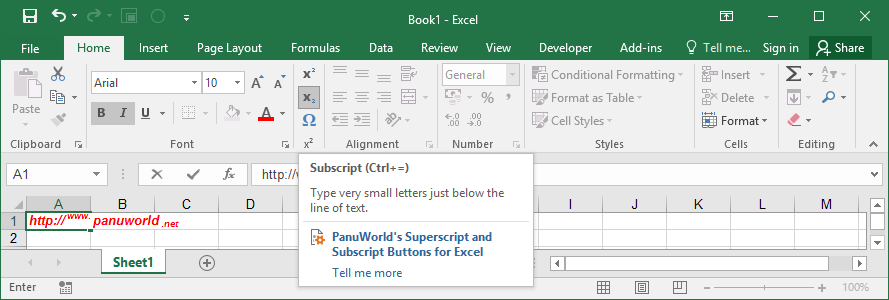
- Superscript and Subscript Buttons for Microsoft Excel (version 1.6) (ZIP, 360 kB)
- Run this setup program to install the add-in and restart Microsoft Excel to get the new toolbar/ribbon buttons and keyboard shortcuts*.
The new buttons work like the built-in Superscript and Subscript buttons in Microsoft Word® and Microsoft PowerPoint®: for example, they reflect the text style of the current selection or insertion point. Buttons can be used to format not only entire cells but also change the text style during in-cell editing (while changing the cell contents, a.k.a. edit mode).
As a bonus, the add-in adds Symbol Font function familiar
to Microsoft Word users: just press the toolbar/ribbon button (or the
shortcut key combination*, see below) and the next letter you type will
use the Symbol font. After that, the previous font is
automatically restored. It is very handy way to type e.g. formulas
containing Greek letters.
You can also use keyboard shortcuts* to access the new functions. The shortcuts have been selected to match the corresponding ones on the other Microsoft Office applications. For example, on a US keyboard:
| Icon |
Function |
Shortcut* |
Notes |
|---|---|---|---|
| x2 |
Superscript |
Ctrl+Shift++ |
For Insert Cells, use Ctrl++ on the numeric keypad instead. |
| x2 |
Subscript |
Ctrl+= |
|
| Ω |
Symbol Font |
Ctrl+Shift+Q |
* Keyboard shortcuts are not available when this add-in is used with 64-bit version of Microsoft Excel. They also vary a little bit depending on your keyboard layout (language). Hover the mouse pointer above the toolbar/ribbon buttons to see if the shortcuts are available and the exact key combination on your particular keyboard layout.
EULA, troubleshooting, version
history, and other
information »


BTW. Extra right-click context menu items are also available while you are editing cell contents (either directly or in the Formula Bar). This is a workaround for the fact that no buttons can be added on the floating Mini Toolbar.
This add-in has been tested on Microsoft Office Excel 2003, 2007, Microsoft Excel 2010, 2013, and 2016. It may work on other versions supporting 32-bit COM add-ins, anyway. Microsoft, Excel, Office 365, Word, and PowerPoint are either registered trademarks or trademarks of Microsoft Corporation in the United States and/or other countries.
19.1.2021 panuworld.net@gmail.com